
Beauty, Craftsmanship, and a hefty price
Purchase Price: $129.99
Like many folks with a desk job, I have a work-issued 13” laptop and two external monitors. I don’t often need to work at a place that is not my desk, but when I do, I feel like I have to be strategic about what tasks I can actually do with a single, small screen. Sure, almost any task can be done using a single screen, but not every task should be done using a single screen–if you want to keep your sanity, that is.
I don’t know about you, but for me and my brain, a change of scenery and working environment can really switch up the vibe enough to spark a new idea or boost my motivation (allowing me to finally start a project I’ve been dreadfully procrastinating). But the added layer of friction I feel when I leave my external monitor set up really deters me from working anywhere other than my desk, and therefore keeps me stuck in the same vibes of same-ol’ same-ol’ and procrastination.
So when Alex (Sypnotix founder and Editor-in-Chief) asked me to review a portable monitor from an up and coming Chinese brand, I immediately said yes. The Sotsu SleekView 15 portable monitor has been a complete game changer for me. It has freed me from the mental calculation of which tasks are actually doable if I want to have a change of scenery without sacrificing my sanity.
First Impression
Unboxing the monitor was my first introduction to the care and thought that Sotsu gives to its products and packaging.
The Monitor was stored in a black neoprene sleeve, and the two cables that were included in the box were each in their own little canvas bag. I wasn’t looking for this at the time, but looking back at my unboxing footage, I now realize the only single-use plastic that was used in the packaging was the screen protector. So, if purchasing from a company who uses more sustainable packaging practices is important to you, Sotsu should be on your list of brands to consider when purchasing a portable monitor–from what I can tell, Sotsu only sells portable monitors and a few accessories for those monitors.
The two cables the monitor comes with are both USB-C to USB-C–a shorter half meter grey rubberized cable and a longer one meter black braided cable, which also includes an attached USB-A dongle. On one end of each cable, the connector is turned 90 degrees, which has been great for cable management when I plug that end into my computer. Speaking of cable management, I really appreciate that both cables came with their own velcro cable wraps. Color me impressed with how thoughtful Sotsu is with even the smallest details.
Setting up the monitor was as simple as plugging it in with one of the provided cables, then going to my display settings to tell my computer where it physically was in relation to my primary display, and whether I wanted it to mirror or extend my primary display. The included padded sleeve and less than two-pound weight made it a no-brainer to take with me on a recent trip.
Display Specs & Settings
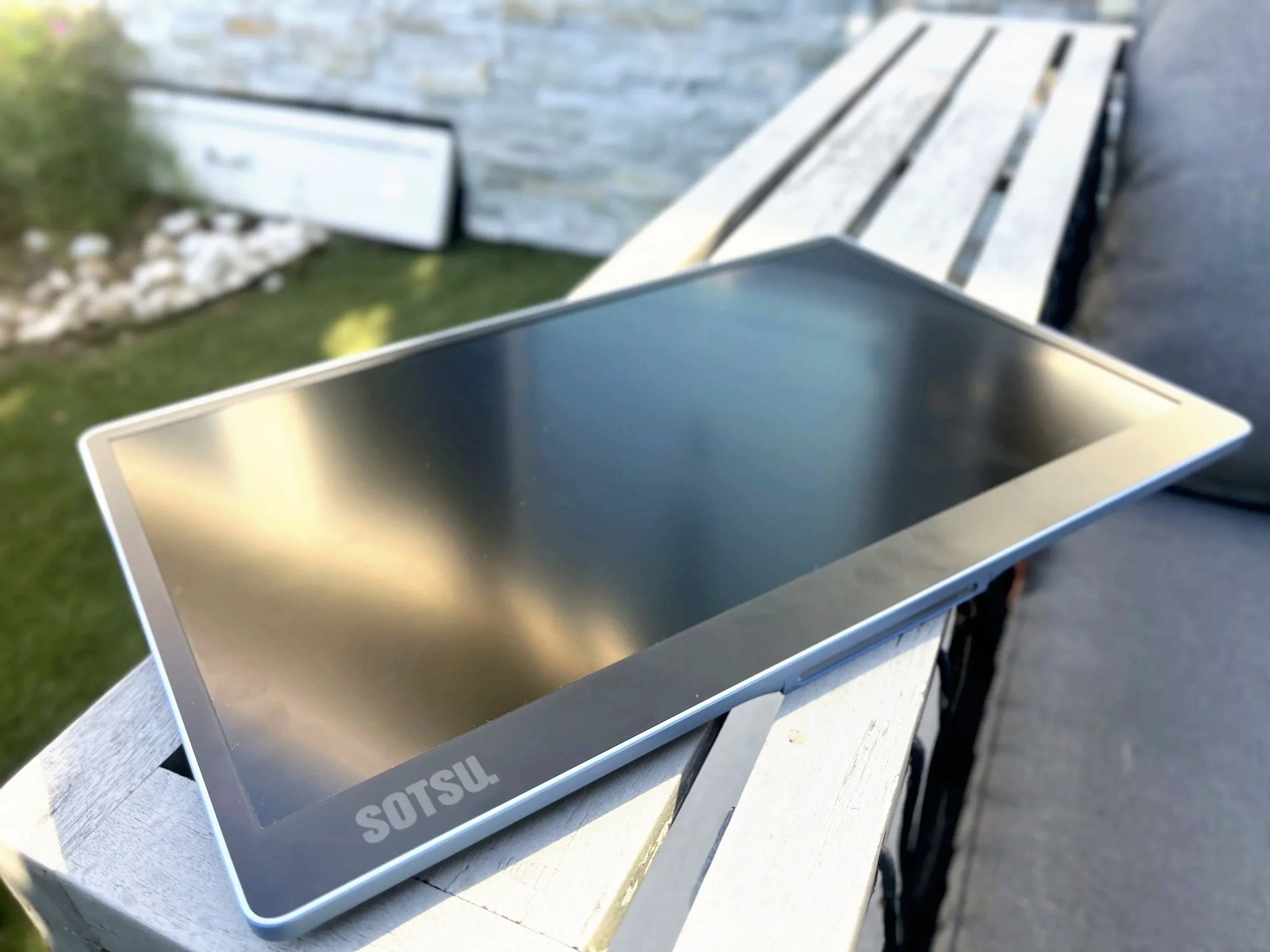
The Sotsu SleekView 15 has a matte 15.6” TFT-LCD monitor with full HD 1920 x 1080 (1080P) resolution and a 16:9 aspect ratio. It has a 60 hertz refresh rate, 30 millisecond response time, 1200:1 contrast ratio, 300 nit white luminance, 0.2 millimeter pixel pitch, and 100% standard RGB color accuracy.
As far as I can tell, it’s got all of the standard adjustable settings that any monitor would have–backlight, brightness, contrast, etc. These can all be accessed and fine-tuned to your liking via the OSD menu–pretty standard. Very conveniently, though, you can adjust the brightness of the display without having to navigate through the OSD menu, just by pressing the top or bottom of the 4-key OSD button on the back.
The monitor also has five picture presets–standard, game, movie, paper, and photo. I compared this selection to the other three monitors I have, and this seems to be the most comprehensive list of presets. With the “Standard” preset as the baseline, the game preset gives it a slightly brighter and less saturated display; the movie preset goes a bit darker with a an every so slight pink hue to it; the paper preset is a little darker and duller, which I imagine is designed to reduce eye strain; and the photo preset is brighter and more vibrant.
Something to keep in mind when using the presets is that it remembers your last-used preset the next time it is plugged into a device, whether or not it is the same device. This could be a pro if you are typically using the extra monitor for the same thing each time, but it could also be considered a con if nearly each time you use it, you are using it for a different task that would be best under a different preset, and you want to utilize these presets. But with only four clicks around the OSD to get to the presets submenu, I personally don’t think it’s a huge barrier. But you might disagree.
When it comes to your device display settings for this monitor, there is a bit of a difference between what is available for Mac versus PC users. When I connected it to my work PC–a Dell Latitude 5340–I was able to easily adjust the display scale in the display settings, along with display resolution and display orientation.
When connected to my MacBook Air, the only display settings I could change were resolution and orientation. On the Amazon product page for the SleekView 15, they offer this note: “For Mac users seeking larger text scaling, third-party display tools like BetterDisplay can be used to enable High DPI scaling for ultra-sharp, customized readability.”
The small text size didn’t bother me enough to go through a third-party display tool to fix it because I’m generally not doing text-heavy tasks on my Mac, and when I am, I can just scale up the app in which I’m working. If, however, I had a Mac for my work computer, or if I was doing more text-heavy tasks on my Mac, it might be worth going through the additional steps for overall larger text scaling rather than app-specific text-scaling.
One more note about display settings before we move on to quality. The monitor came up as “FlipAction156” in my Display Settings when connected to both my Mac and Dell. Sotsu does have a line of “FlipAction” portable monitors, but the SleekView 15 does not appear to be part of that line. I imagine this is the result of a small, non-consequential oversight in engineering, but wanted to bring it up so that if you experience the same, you know you have done nothing wrong.
Image Quality
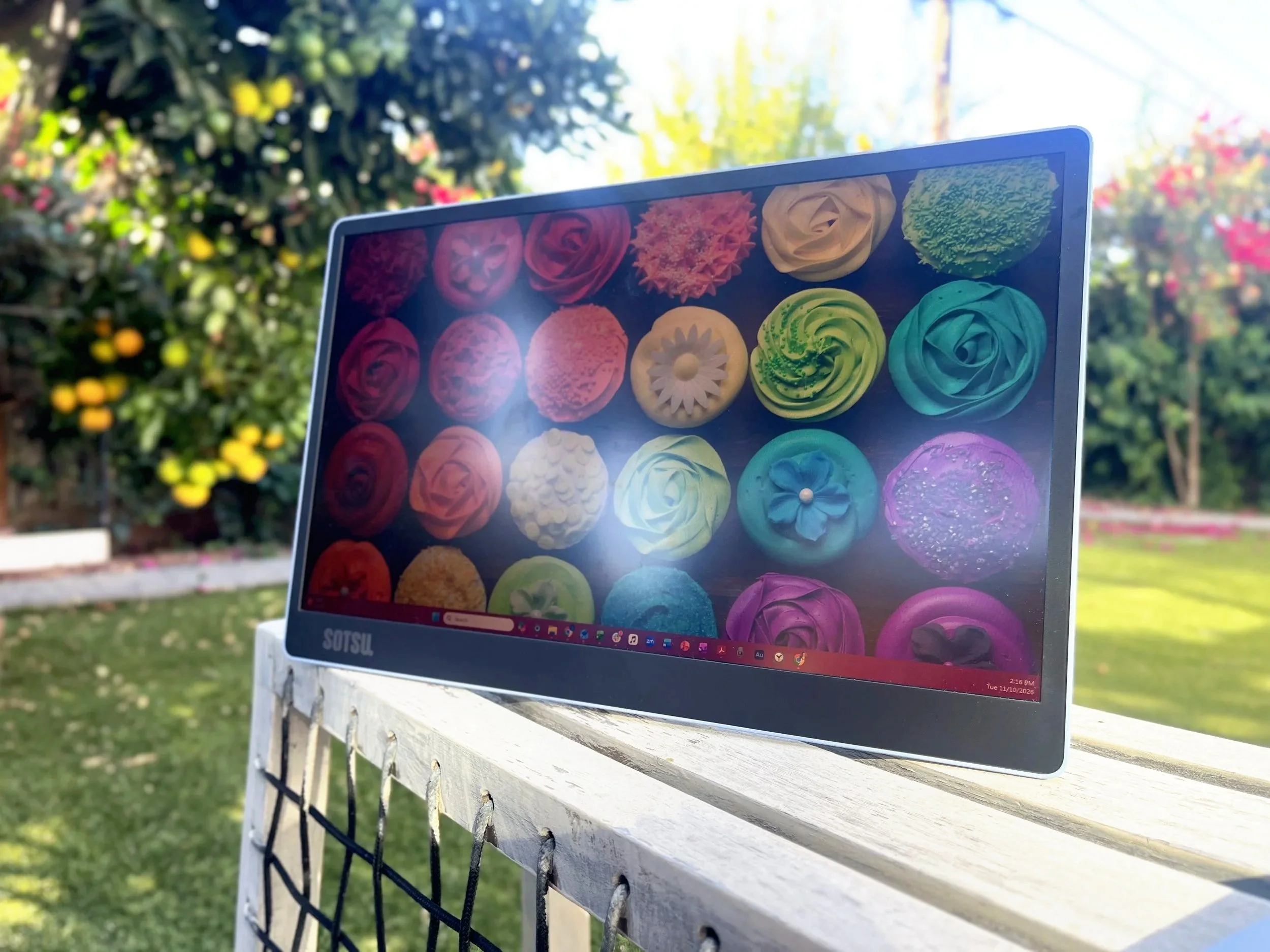
I have no complaints for the display quality when using the monitor inside under standard indoor lighting conditions. No glare that I could find at any tilt, and a wide viewing angle of 170 degrees, 85 degrees in either direction. When I moved outside on a partly-cloudy day, despite the matte screen (or maybe because of it?) I had to adjust the tilt and angle of the monitor to avoid most of the glare. But this was the same story with my laptop, so not a monitor-specific critique. It wasn’t impossible to avoid the glare, but it’s something you have to watch for outside.
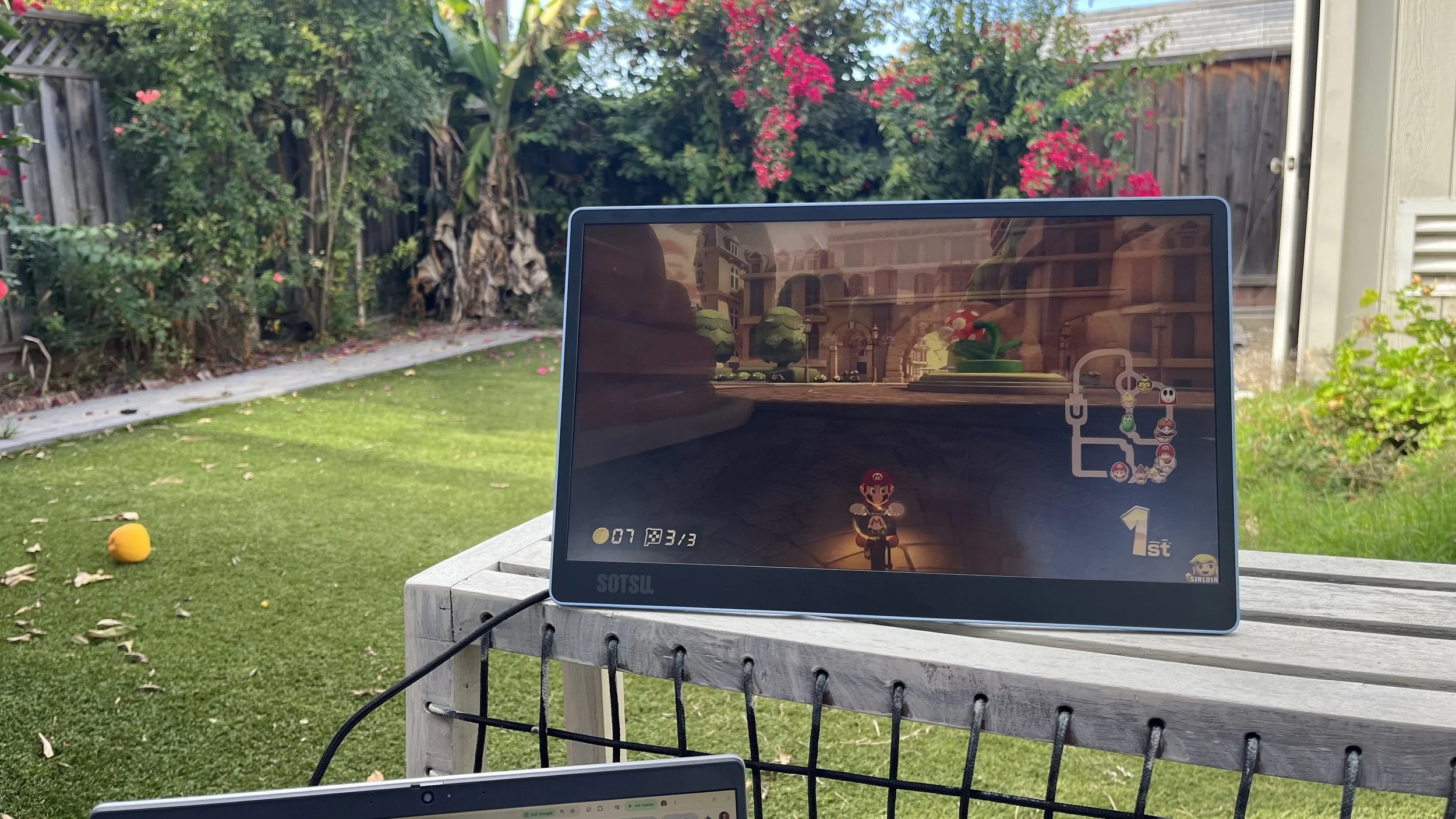
Doing primarily text-based work and internet browsing, the SleekView 15 does the trick. I’d even say streaming videos on the monitor is an enjoyable experience. Are you going to see every pore on every actor or actress? No! For one, it’s not 4K, and for two, actors and actresses don’t have pores because they are flawless beings. (That was a joke).
But if you want a show on in the background, but you also need to look at something on your computer, this is pretty great. I used it this way while I was sewing–I could have my sewing pattern instructions up on my computer and a show playing on the monitor.


Design
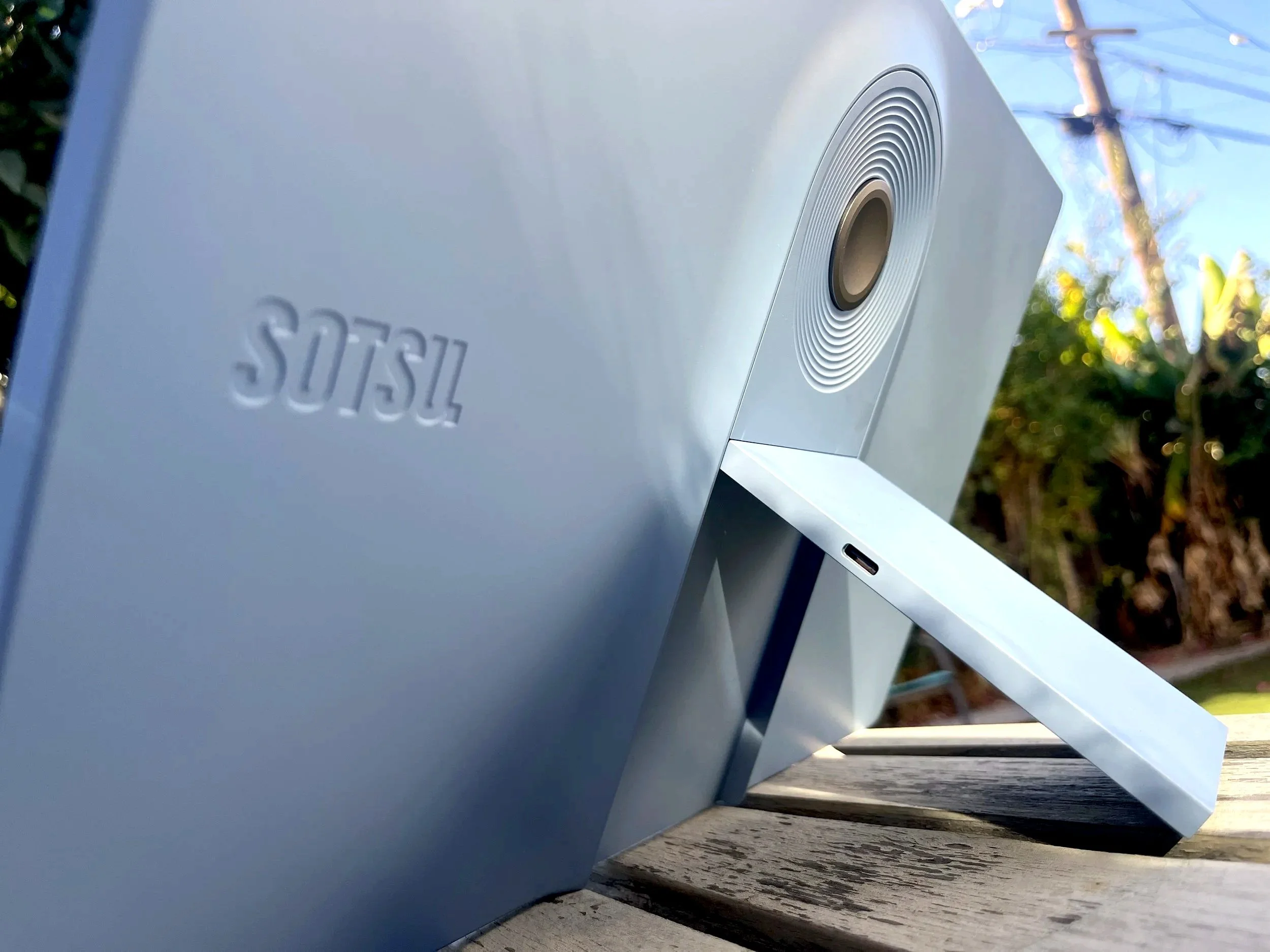
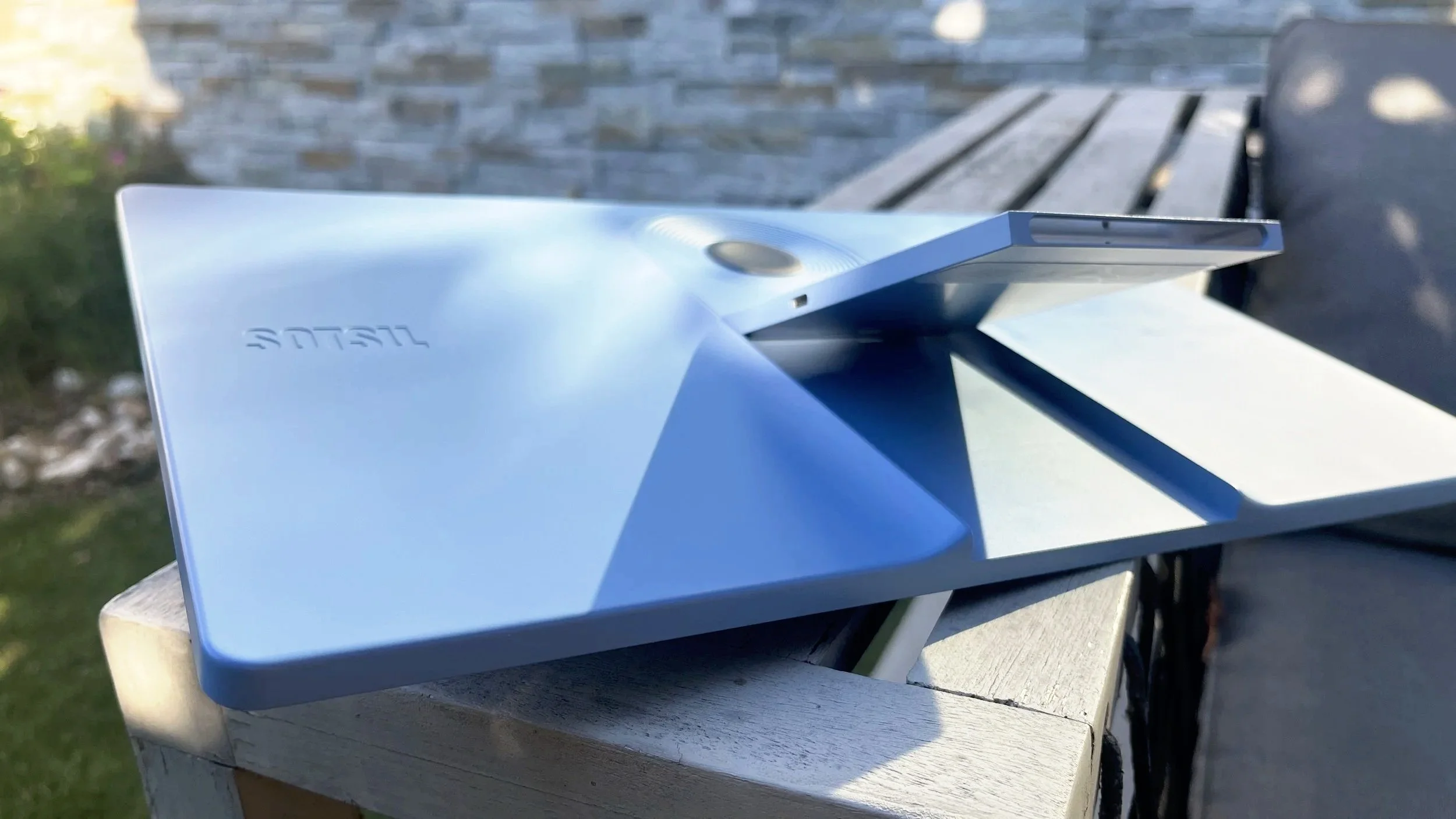
I imagine all portable monitors come with some kind of stand, but I’ve seen several that are more of a folio style stand that only offers one or two angles. The SleekView 15 uses a built-in kickstand that is beautifully and cleverly designed, and feels like quality construction. The clever part of the design, in my opinion anyway, is the port placement. Sotsu stashed all the ports into the sides of the kickstand: on one side you have one USB-C port, and on the other side, you have one USB-C port and one HDMI port. (I talk more about the ports in the next section.)
The kickstand can be tilted out as little as 11 degrees (to account for the cables plugged into the sides of the kickstand), or as wide as 73 degrees at its maximum. And when it’s not in use, it elegantly folds into and blends beautifully with the design, giving it a very polished and thought-through aesthetic.
An added bonus about the port placement in the kickstand, is that when the kickstand is completely folded in, it provides a bit of natural protection for the ports because they are tucked away, keeping out a lot of dust and debris when not in use.
The only potential drawback I could maybe see in the port placement is if, for some reason, you do not want to have the kickstand out at all when you’re using it because it must be at least a little angled out to access any of the ports. The tickstand at it’s lowest angle adds 1 ⅜ inch to the depth of the bottom edge. So, if you’re looking for a completely flat-backed portable monitor for some reason, you’ll need to look elsewhere.
Just above the kickstand is a single metallic grey, 1 ¼ inch, 4-key OSD button. I think they’ve done a beautiful job incorporating it into the design by surrounding it with a series of textured circles, making it look like the center of a ripple. It’s a nice aesthetic design detail that makes the product feel elevated. And they’ve made the button itself very tactile-y satisfying to use.
Although it is a single round button, it behaves as if it is four buttons–up, down, left, and right–as you’d probably expect. When the monitor is in use, pressing the top or bottom of the button allows you to easily adjust the display brightness. All other settings can be accessed by pressing either side of the button, then using the button as a 4-arrow control.
When the monitor is connected to a power source, but not an input source, you can only access the input and output settings. I imagine this is so you can see your input settings in case you think you are connected to an input source that the monitor is not picking up for some reason. (To avoid this, though, I’d suggest keeping the input setting on auto, rather than on a specific port.)
On the front of the monitor, the bezel around the screen is 8mm on the sides and top and 23mm along the bottom. The bezel is matte black and has the simplistic Sotsu logo on the bottom left in a dark grey, making it easy to miss if you’re not looking for it or are in low light. But that’s not a bad thing, in my opinion. I appreciate simple branding. Slightly more noticeable, but still maintaining the clean and minimalist look, is the embossed Sotsu logo on the back, to the left of the kickstand.
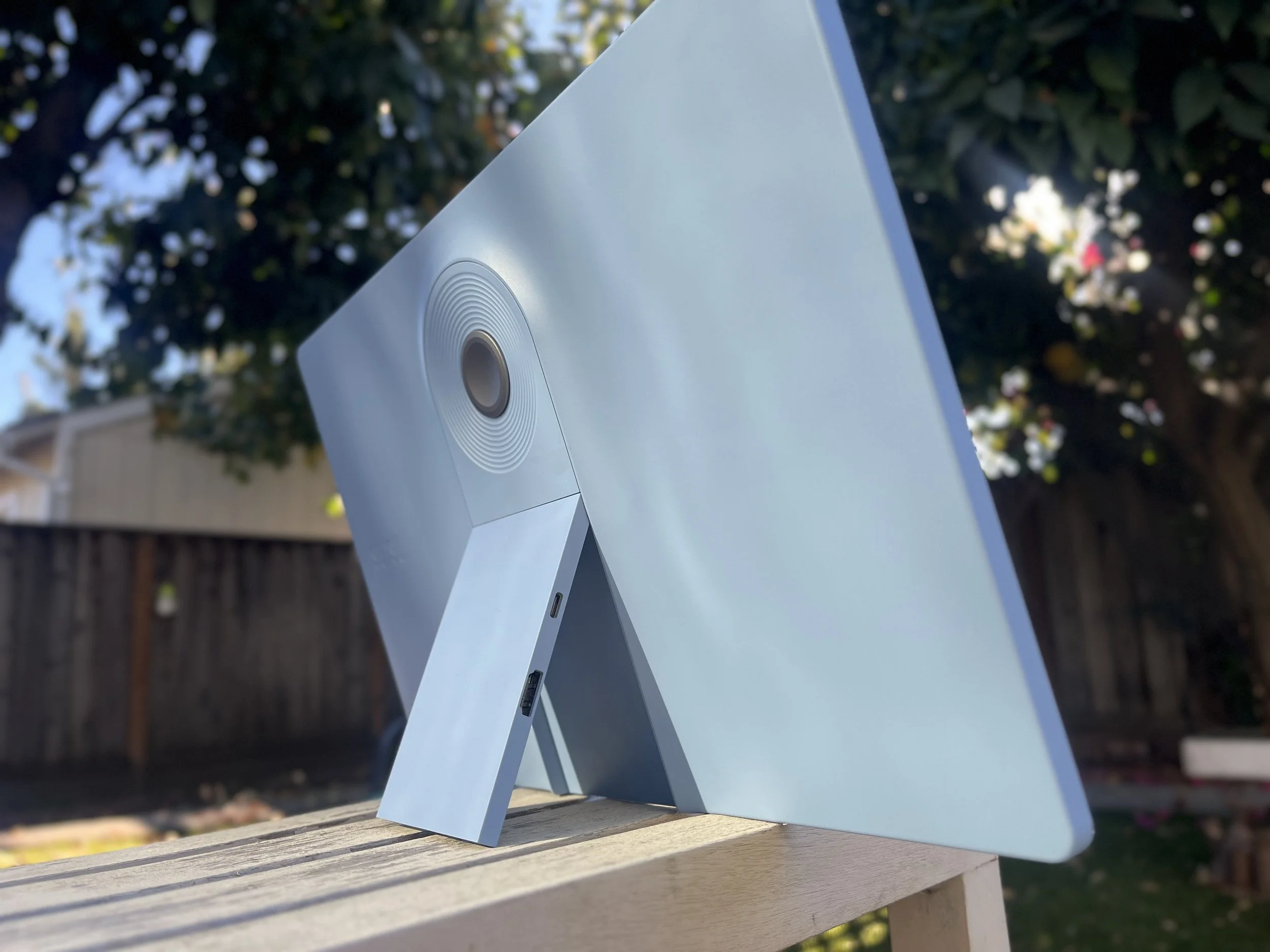
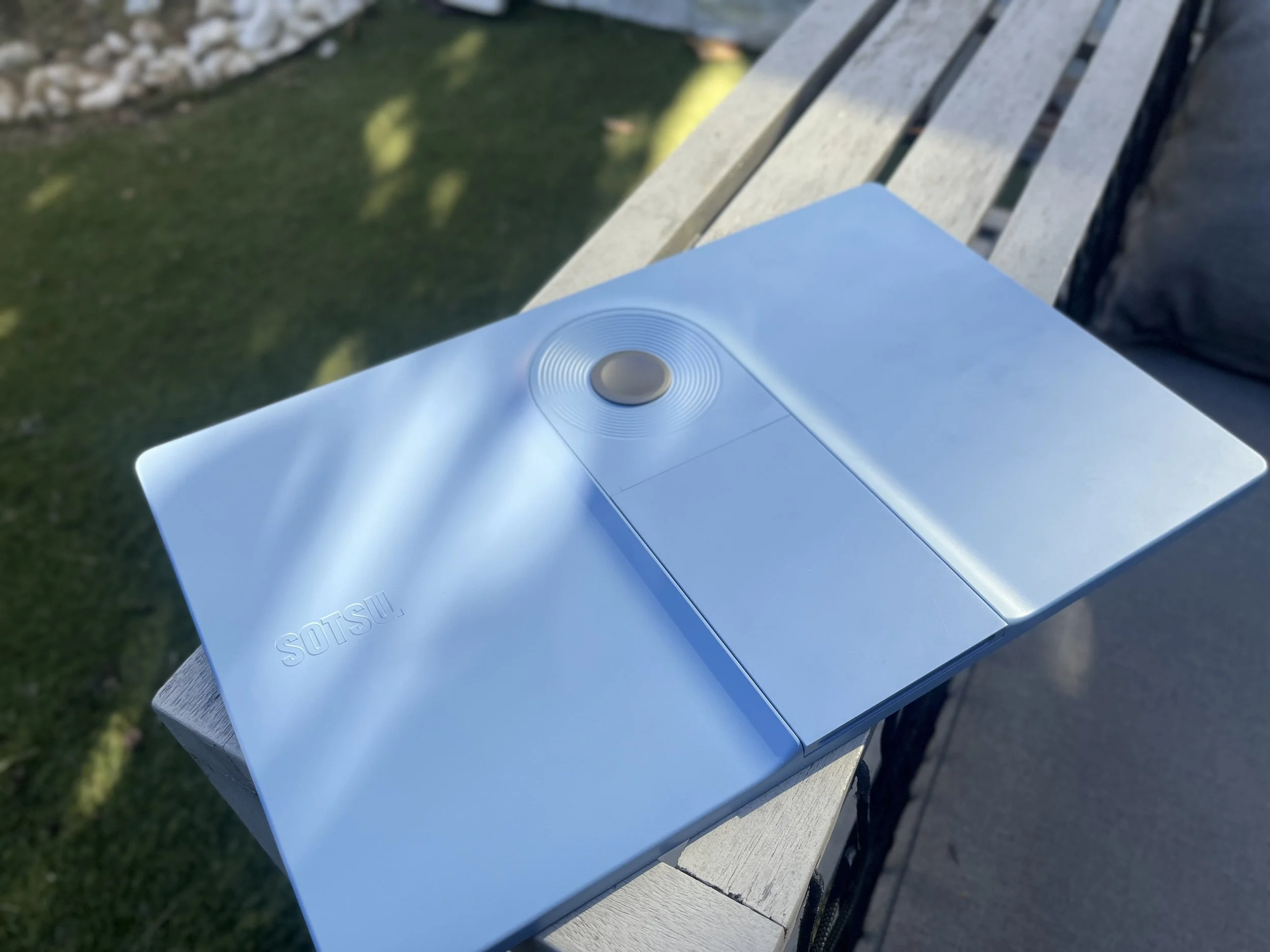
I selected the “denim blue” colorway. They really did such a nice job making this blue. In some lighting, it leans a little more periwinkle, which is a-okay with me. This monitor also comes in “cool white” and “black pink,” both of which appear to be matte, like the blue. For me, this denim blue is the perfect pop of color.
I believe the casing is made of painted plastic, but not in a way that makes it feel cheap and flimsy, but rather, in a way that allows the whole thing to weigh less than two pounds.
If you want your monitor to sit a bit higher without putting it on a platform, Sotsu sells a base stand that fits with the slot at the bottom of the kickstand. They also sell a VESA mount adaptor that allows you to slide the kickstand on and off the mount.
The only major feature that some folks might be specifically looking for that the SleekView 15 doesn’t have is a touch screen. The lack of a touch screen doesn’t bother me too much since neither of my laptops have touchscreens. But if you are used to having a touchscreen monitor to work with and you use the touchscreen regularly, this might not be the right portable monitor for you.
Overall, it is obvious that Sotsu has given a lot of thought to the design and appearance of this product. From the rounded corners to the slight ramp up on the back to incorporate the kickstand and OSD button to the ripples around the ODS button, this monitor feels so elegant, which is not something I ever expected to say about a monitor.
Connectivity & Power Consumption
When connected via USB-C, the monitor consumes up to 7.8 watts from whatever device it’s connected to. When connected via HDMI, the monitor requires its own power supply and that must be at least 6.5 watts. I imagine this is why the longer cable includes the USB-A dongle, to give you more versatility in how you provide the needed power supply. So, the upside of connecting via HDMI is that it won’t drain your device battery. The downside is that, unless you have a decent power bank, you’ll have to be near an outlet to use the monitor. Also, if you want or need to connect via HDMI, you have to find your own HDMI cable.
I need to preface this next bit by saying that neither of the computers I used for testing have great battery life on their own. Without powering outside accessories, I can get 4-5 hours from my Dell and about 3-3.5 hours from my Mac. When I had the monitor connected to either computer and was actively and pretty continuously using it, both computers needed juice after about 2 hours.
However, this “issue” gave Sotsu yet another opportunity to think of the end user. They gave us passthrough charging because they know how stingy some computer makers can be with ports. Thank you, Sotsu. This means that you can use one monitor USB-C port to connect to the computer, and use the other monitor USB-C port to connect to a power source. The power supply must be at least 30 watts because the monitor will take up to 8 watts from the power supply before sending the rest on to your computer. So, your computer is not going to charge fast using passthrough charging, but it won’t die.
Final Thoughts
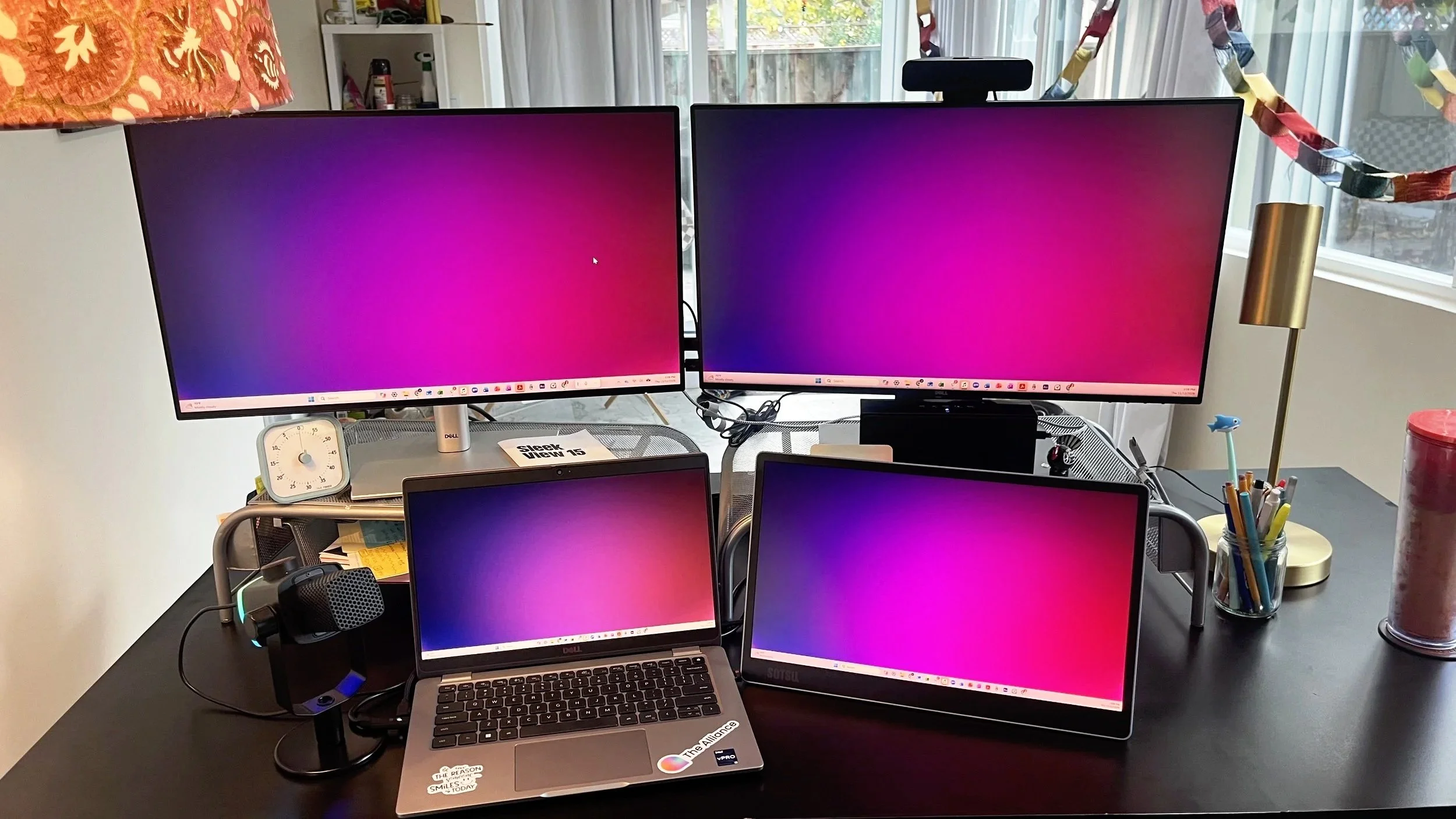
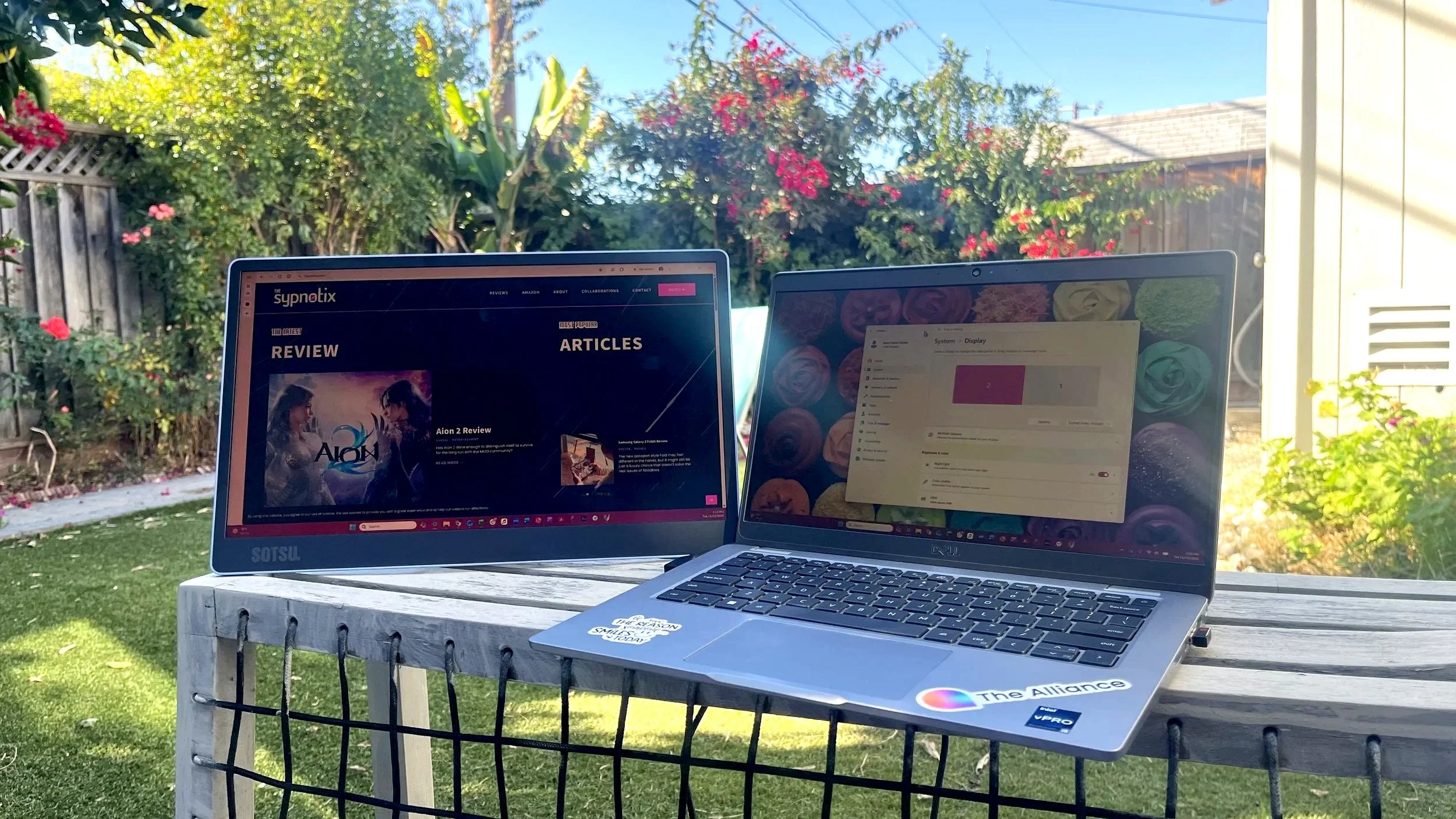
The Sleek View 15 next to a laptop and monitors
If you’ve read or seen any of my other reviews, you know I always look at the user guide because I am a firm believer that most, if not all, tech should be accessible to even the least-techy among us. I’m happy to report that Sotsu did a great job with the user guide, not to mention the true plug-and-play set up. The user guide is thorough and includes screenshots for the display settings apps for Windows and Mac users, and has a full table of all the OSD menu options, submenus, and a description for each item. This can be very helpful if you’re interested in learning all the ways you can adjust and customize your display and don’t already know what everything means.
This was my first introduction to the Sotsu brand, and color me impressed. I have really enjoyed having the SleekView 15 at my disposal, and will definitely continue to heavily use it. Just the other day I was able to work outside in my backyard without a second thought about which tasks could actually get done because I have this monitor.
Alex, you have no idea how much you improved so many aspects of my life by asking me to do this review. I had no idea how much having a portable monitor would improve my life. But I don’t think just any portable monitor would have given me so much joy and delight as this one does. Sure, they’d all give me the same flexibility, but I find myself really captivated by the beauty, design, and craftsmanship of this monitor. Well done, Sotsu. Well done.
So, if you want a good portable monitor and you really appreciate simple, yet beautiful and thoughtful aesthetic design, the Sotsu SleekView 15 should definitely make your short list. And with the holidays coming up, this would make a great gift for the person in your life who maintains high standards of aesthetic, design, and quality for everything they use.
We are a participant in the Amazon Services LLC Associates Program, an affiliate advertising program designed to provide a means for us to earn fees and support our channel by linking to Amazon.com and affiliated sites.

For less than $200, this ultrawide monitor has all the bells and whistles for just about any gamer.