
FIFINE AmpliGame SC8 USB Audio Mixer + XLR Cable
Adding a Genie to the Budget
Disclaimer: FIFINE sent us a unit free of charge to review, but all thoughts and opinions expressed in this review are our own.
Retail Price: $69.99
‘10FIFINE’ for 10% off on amazon
‘FifineMic15’ for 15% off on FIFINE
When FIFINE reached out to Sypnotix to review the AM8ProT mic and boom arm, I was interested in doing the review because I (a) like testing mics, (b) was in need of a boom arm, and (c) liked that it was a USB OR XLR mic. After I started my review of the mic and boom arm, FIFINE sent over the AmpliGame SC8 Gaming Audio Mixer with RGB and the L9 XLR cable to connect the mixer to the mic.
FIFINE sells this mixer as a standalone product, the mixer and XLR cable together, or the mixer and XLR cable in combination with the AM8ProT mic and boom arm. This review is specific to the mixer and XLR cable.
About the Kit
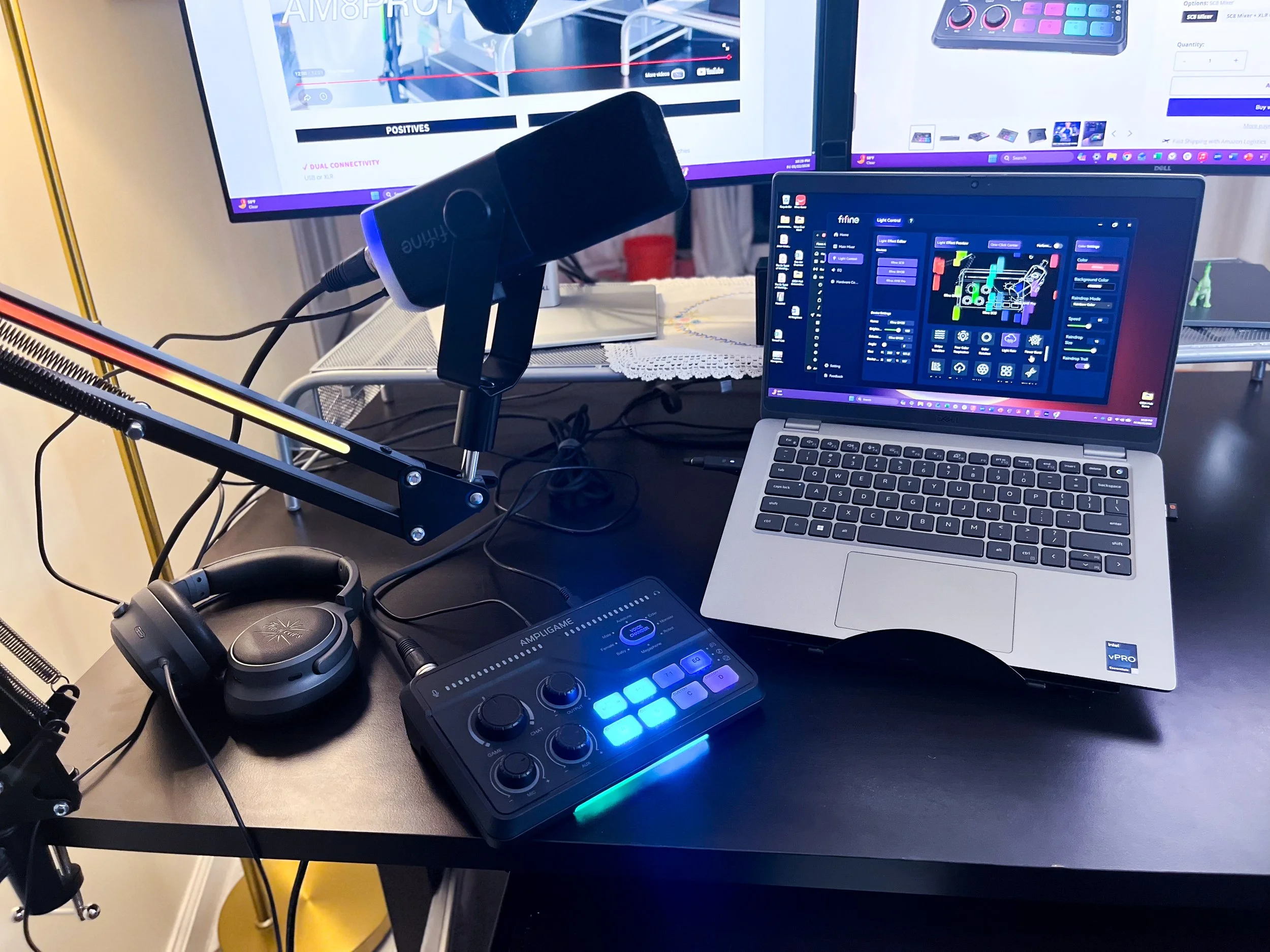
This kit I received includes the gaming mixer, a USB-C to USB A/USB-C cable, a 3.5mm to 3.5mm auxiliary cable, a 3m male to female XLR cable, and user guides for the mixer and the XLR cable. I have the mixer in black, but it also comes in pink or white.
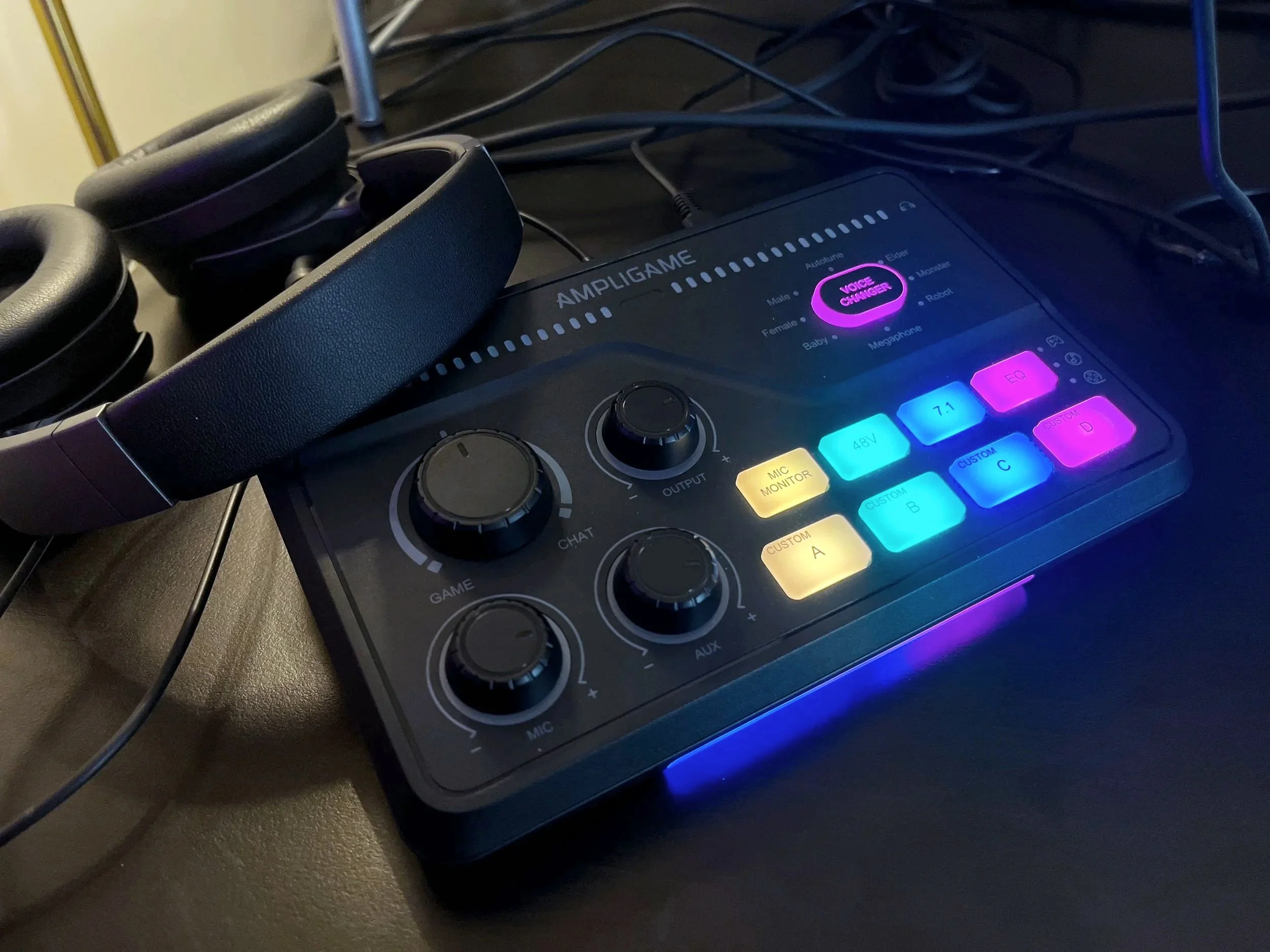
The front of the mixer has 4 knobs - game/chat balance, output volume, mic gain, and auxiliary output. The output, mic, and auxiliary knobs also act as push-to-mute buttons for their respective dial. To the right of the knobs, you have dedicated buttons for mic monitoring, 48V phantom power (if your XLR condenser mic needs it), and virtual 7.1 surround sound. At the end of the row is where you can cycle through the 4 pre-set EQ options–normal, game, music, or movie. Below that, there are four buttons for customized recordings, each of which can be recorded up to 15 seconds. Above all of those buttons, is where you can cycle through the 8 voice changing options. Finally, along the top, there are two LED indicators–one for input volume and one for output volume.
On the back of the mixer, you have the RGB control button–long press to turn it on and off, and short press to cycle through the 15 preset RGB lighting modes. Next in line is the PS4/PC mode switch. When using the PC mode, the mixer will be recognized as two output devices–”fifine SC8 Game” and “fifine SC8 Chat.” While using the PS4 mode, it will be recognized as only one output device. (I do not have a PS4… or any gaming console for that matter… so, I cannot speak to anything else related to the PS4 switch.) Being recognized as two output devices allows you to balance between two audio sources when using the Game/Chat knob on the front, like the game audio and live chat, as the names suggest.
Continuing down the line, you have a USB-C port for power supply, an optical input, headphone jack for audio monitoring, and auxiliary input. Note that the auxiliary port and optical port cannot be used at the same time. If both ports are connected to devices, the SC8 mixer will only receive audio from the auxiliary port. Finally, for mic connection, you have the option to plug in a 3.5mm auxiliary headset (different from a headphone), an XLR cable, or a ¼” cable. There is also a dynamic/condenser switch to select the mode according to the type of mic you have. If you connect a headset that comes with a mic into the headset port, the mixer will prioritize the headset as the input device, and any microphone plugged into the XLR or ¼” port will be disabled.
My Impressions
This is my first mixer or audio interface, so I'm just happy to have the necessary tools to use my Fifine mic as an XLR mic. And it did not disappoint. There is a definite side-by-side difference between using the mic as a USB mic on its own versus using it as an XLR mic plugged into the mixer. The sound is far more ✨crispy✨. The XLR cable seems to be a quality cord.
The mixer itself is on the lighter side, likely due to its plastic exterior. But it does feel like it could withstand falling from desk height a few times. Any higher than that, or any more frequently, I don't know if it would survive. The knobs have minimal wiggle to them, but there is some noticeable wiggle on the three knobs that also act as push-to-mute buttons. Coming from the AM8ProT mic, which has a three-in-one onboard control, I really appreciate having separate knobs for the separate controls, and the red LED ring that appears around a knob when the mute is engaged. The two rows of buttons and the voice changer button are very soft to the touch, and pressing them down requires intention. This means there will be no accidental pressing of buttons on this mixer.
I haven't gotten any real world use out of the 4 custom recording buttons or the voice changer effects. I really have no idea what I would use the custom recordings for as a non-gamer, but I'm open to suggestions and possibilities. And I have yet to be on a call where I am comfortable enough with my colleagues on that call to use the voice changing effects. I did spend at least 30 minutes testing out the voice changing effects, and cracking myself up in the process. So at minimum, it was great self-entertainment.
Connecting the mixer to my computer and connecting my mic to the mixer was all very straightforward. But, as someone who creates user guides and videos as part of my day job, I am always interested in the quality of customer resources a company offers. I learned from my review of the AM8ProT mic and boom arm that FIFINE does an excellent job of providing a thorough user guide in the box and additional videos on their website. Unsurprisingly, the same has been true for the SC8 mixer.
What I appreciate most about FIFINE’s approach is their use of screenshots to literally illustrate how to set up the device within a Mac OS environment or a PC environment. Then they take it one step further and provide screenshots and examples of what settings to use within commonly-used software, like Audacity for recording, OBS Studio for streaming, and a combination of Discord and Counter-Strike 2 to demonstrate the Game/Chat software settings.
Although I am not a gamer, and therefore I can't really speak to the specific setting for which the Game/Chat balance knob was designed (read Alex’s review of the AM6 and the ChatMix feature), I have tested it out in my own way. Setting up the two output devices in different applications was way more finicky than I expected. I consider myself relatively savvy when it comes to the computer settings application, because I like to personalize my computer (without actually building a computer). But when I was initially trying to set up the SC8 Game as my default output and the SC8 Chat for my music player, they would inevitably both end up sounding like they were connected to the same output device (according to the Game/Chat knob), despite the settings clearly displaying separate output devices. I was feeling like a crazy person.
It wasn't until I was trying to troubleshoot this through the Genie application that I was told I would need to set the output for a specific application, then close the application, then reopen it for it to work. While I am still mentally unwell for so many reasons and in so many ways, I am happy to report that this is no longer one of them. Turns out the old “turn it off and turn it back on” trick works in this case, too. Once I finally got it properly set up, it has turned out to be a pretty useful control, where I have Game set as my default, and Chat assigned to my music player. This way, I don't necessarily need to pause my music when I need to watch a quick Youtube video on how to perform a function in Excel. (I know. Thrilling)
I must admit that I came into this review, as well as the review of the AM8ProT mic and boom arm, with the preconception that RGB features on tech belonged only to the gamers and streamers. Turns out I was wrong–happily. I am really enjoying having some RGB gadgets in my home office. It adds a bit of whimsy that is truly just for me because none of them appear within my camera frame, and even if they were, all my meetings happen during the day in my home office that gets lots of natural light.
FIFINE Genie Software
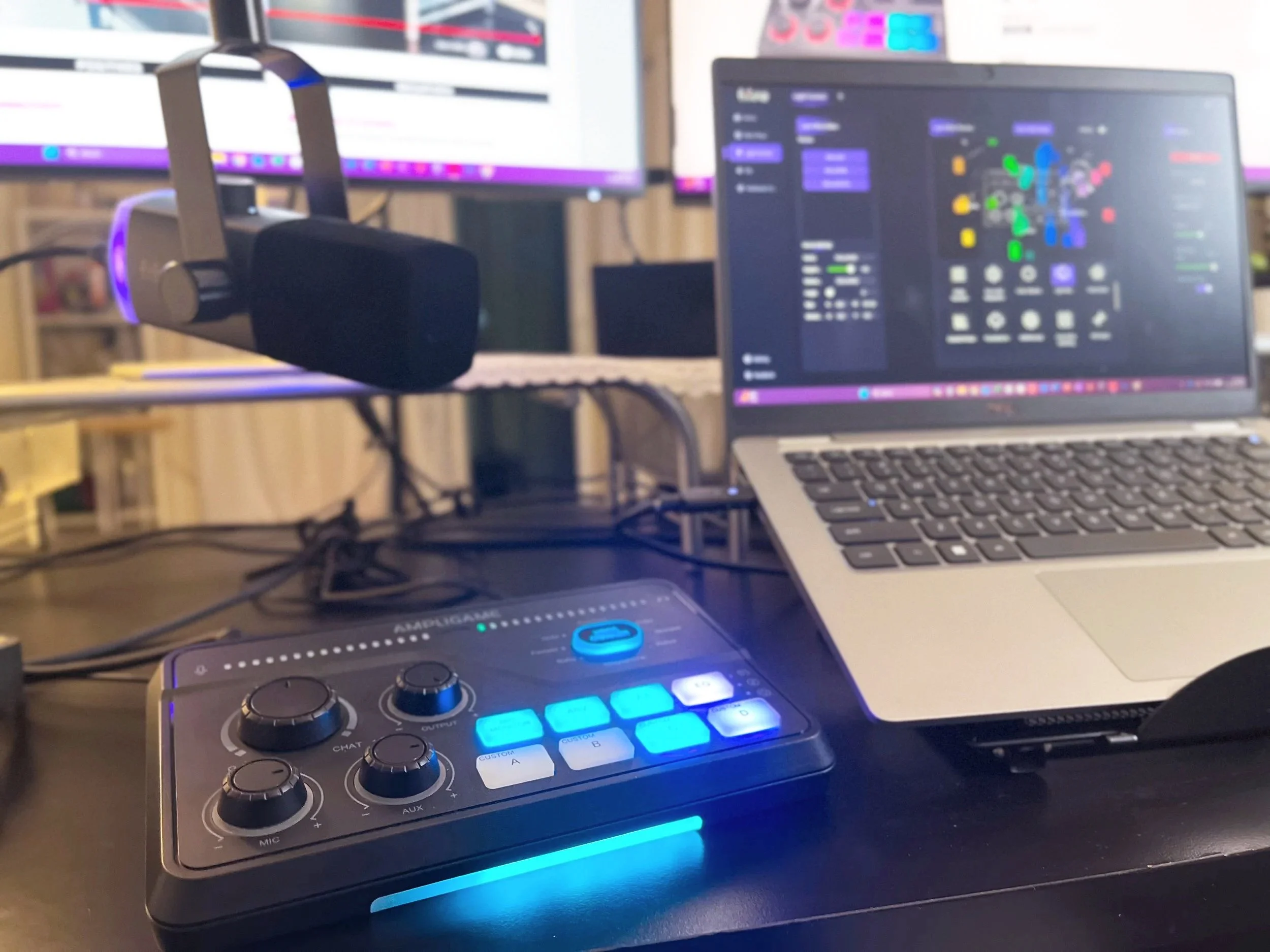
Speaking of the RGB features on my devices, FIFINE has recently launched their Genie software that allows you to mix tracks, customize RGB across devices, and set up specialized EQ modes for different situations.
The Main Mixer tab on the left shows you the levels for your mic, game, chat, media, and auxiliary inputs. Each level can be controlled and muted independently, or the master level can uniformly control all the input levels, while the mic level maintains its independence. You can view the Mixer in “Streamer View” or “Normal View.” “Streamer View” allows you to control not only the volume for your headphones, but also the volume for the live-streaming room.
The Light Control tab was where I had the most fun playing around. Along the left you'll see a list of your plugged-in RGB devices. All of my RGB devices are from FIFINE, so I cannot say whether non-FIFINE devices would be recognized in the software. To customize the RGB on one or more devices, you drag the device from the devices list into the Light Effect Preview pane. (It took me longer than I would like to admit to figure out that it was a simple drag and drop pane.) A line drawing of the device will appear, which you can then move around the pane, make bigger or smaller, and rotate.
Once you have your devices placed on the preview pane, the fun begins! There are 22 RGB modes, 19 of which allow you to customize the colors, patterns, volume, speed, quantity, and more. The remaining 3 options allow you to sync the RGB with your screen, with a video, or with an image. This software basically allows for infinite RGB customization. And that’s on TOP of the 15 preset RGB lighting modes built into the SC8 mixer.
The EQ tab allows you to select one of the several preset modes, including specific gaming environments, manually adjust the audio effect parameters up to 10 control points, and save and share your EQ settings by exporting them. I do not know enough about the relationship between decibels and hertz to really play around with the EQ settings, so I can't really say more about this tab.
The last tab is the hardware configurations. As far as I can tell, this just gives you a digital panel of toggles and dropdown menus that offer the same functionality as any physical controls on the selected device.
As you can probably tell, I had the most fun in the light control section, but I think streamers and people who know more about EQing than I do could find this software useful. And the best part is, the software is FREE to download and use!


Final Thoughts
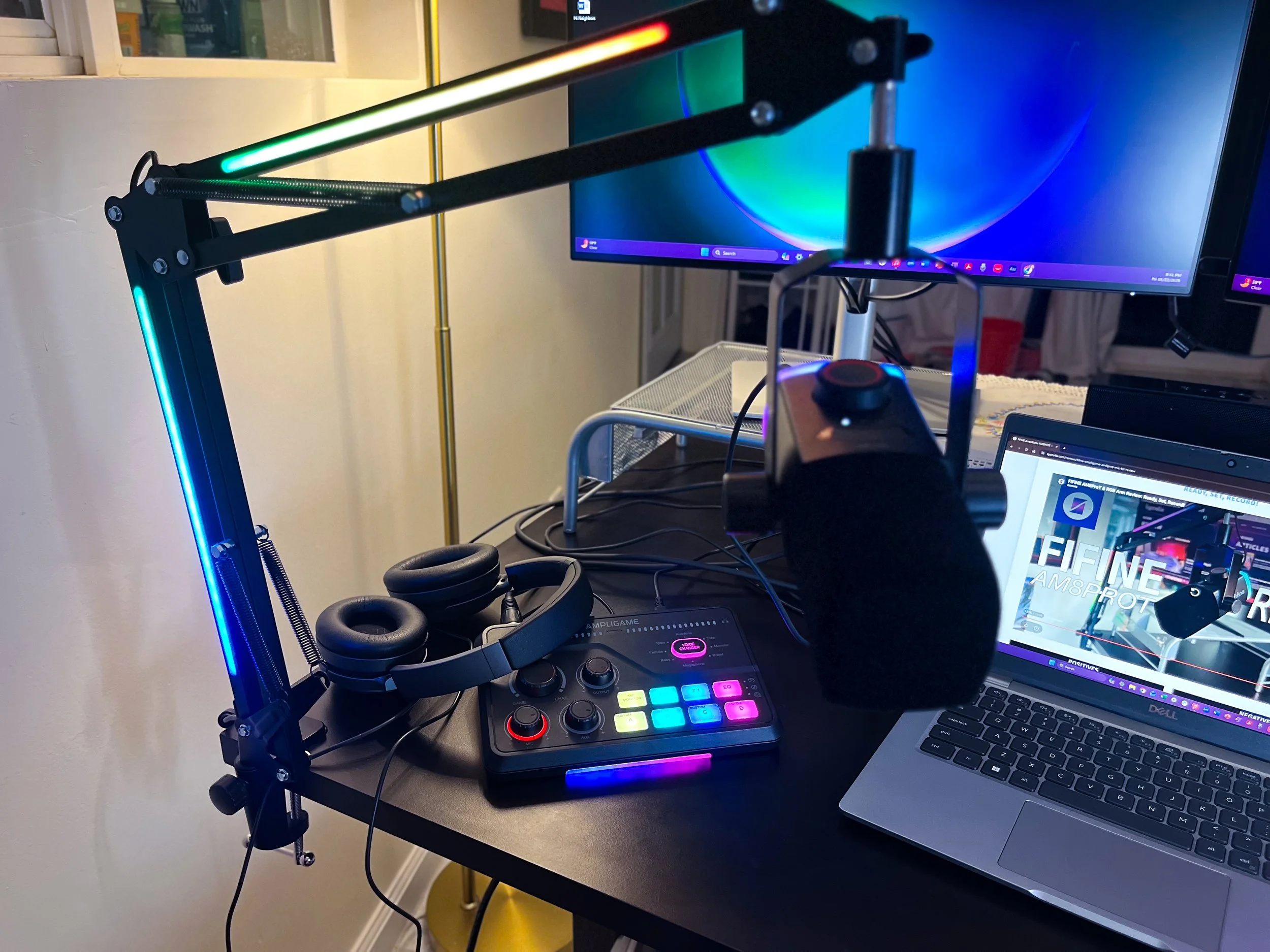
If this is your intro to getting a mixer, I think this is a really solid start. It offers a lot of functionality, along with some fun features with the lights and voice changer, for a very affordable price. And if you get it in a bundle with the AM8ProT mic and boom arm, you get an even better deal. I also think that this mixer is a great option if you are a gamer and/or streamer, since you are who FIFINE had in mind when they created this tool. They definitely were not thinking of me as their prime demographic–a person who tries to limit her time sitting in front of a computer to only when it is necessary to do her marketing job, to edit audio, and to write reviews for The Sypnotix.
We are a participant in the Amazon Services LLC Associates Program, an affiliate advertising program designed to provide a means for us to earn fees and support our channel by linking to Amazon.com and affiliated sites.

Does the Sennheiser brand name holdover to the USB microphone space?