
Mad Catz M.M.O. 7+ Mouse Review
Gimmick or Game Changer?
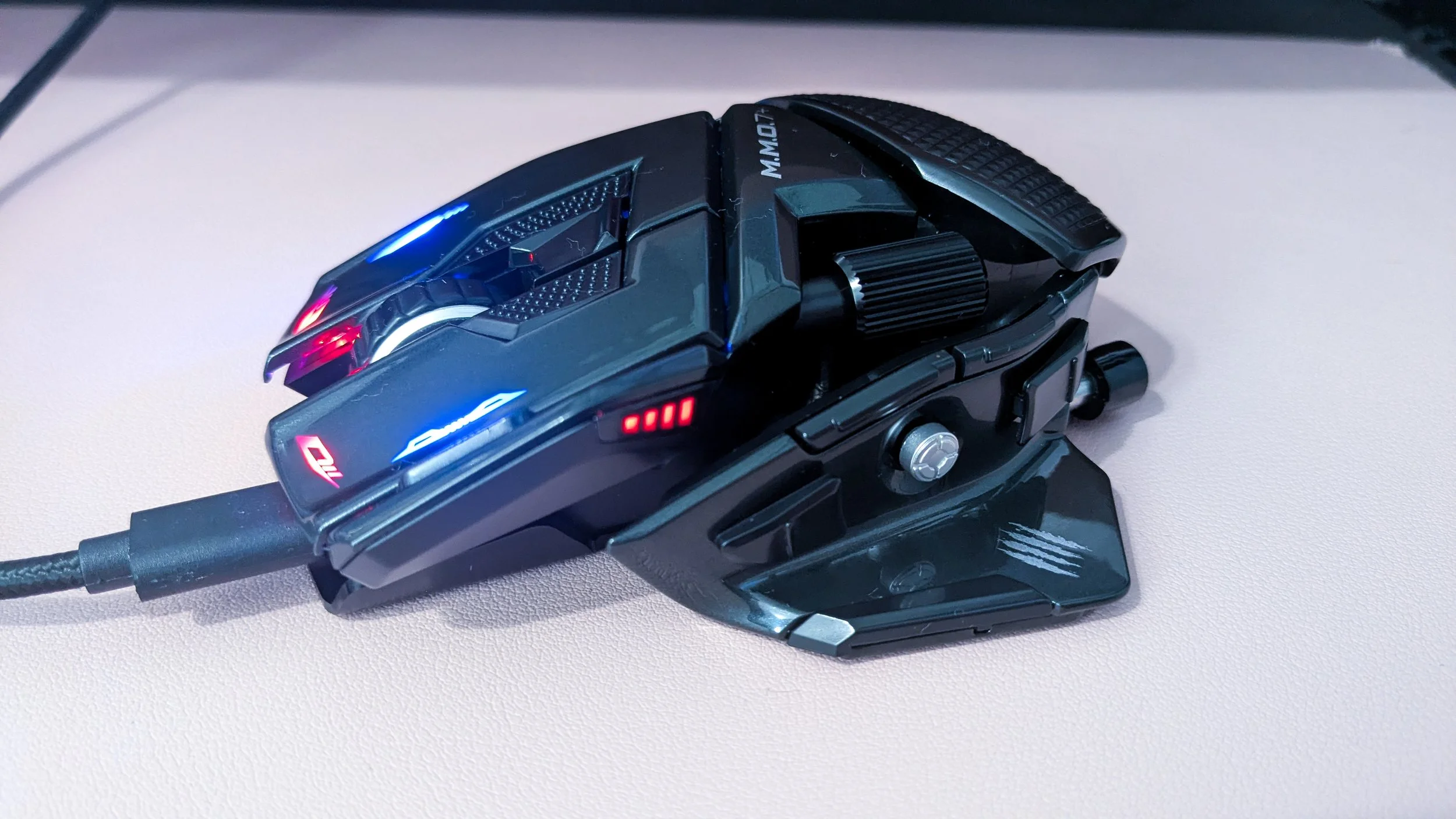
I’ve been through a number of mice in my time as a gamer, and yet, I have never tried one of the dedicated MMO mice with a million buttons. Though I was interested in trying an MMO mouse, I always found the ones with the 12-button blocks on the side a bit daunting. Not only am I used to using the side buttons in specific ways that wouldn’t be accommodated by a traditional MMO mouse, but I also felt like it’d be easy to mix up the 12 buttons on the side and press the wrong input. So, when I came across the Mad Catz M.M.O. 7+ mouse, I thought it looked like the perfect solution for me, as it has a total of 21 programmable inputs that are all spaced out around the mouse rather than in a block like traditional MMO mice. Honestly, this Mad Catz mouse is probably one of the coolest mice I’ve ever tried, and I think it could be a great option for those who don’t like traditional MMO mice.
retail Price: $149.99
Ergonomic Customization
-
22-button layout with 21 programmable inputs
5D button for multi-command input
5 Profiles
140g weight
26,000 DPI
Optical Sensor Type (PixArt 3395)
650 IPS (Inch per Second)
1,000 Hz Polling Rate
Up to 40 hours battery
Many mice are marketed as ergonomic, and aside from those that come in weird shapes, I always wonder if that’s actually true. Having no particular hand issues myself, it’s hard for me to judge how well something delivers on the ergonomic promise. That said, I still wanted to highlight the physical customization of this mouse, because it’s unlike anything I’ve ever seen before.
This mouse comes with a tool that allows you to loosen the left side panel and slide it forward and back so that the buttons will better align with your thumb. The palm rest can also be slid forward and back, and the mouse comes with both a textured option and a smooth option for the palm rest. The horizontal scroll wheel near the back of the mouse can also be pushed in or slid out to better suit your hand. It definitely takes a bit of finagling to get the mouse adjusted to your liking, but moving the parts around is really easy, and once you have things set up, you’ll probably never have to touch it again. So, while I can’t comment on whether or not this helps with hand fatigue since I don’t really experience such a thing, I can say that there is a lot of customization to help you achieve a good fit, and I’m genuinely impressed.
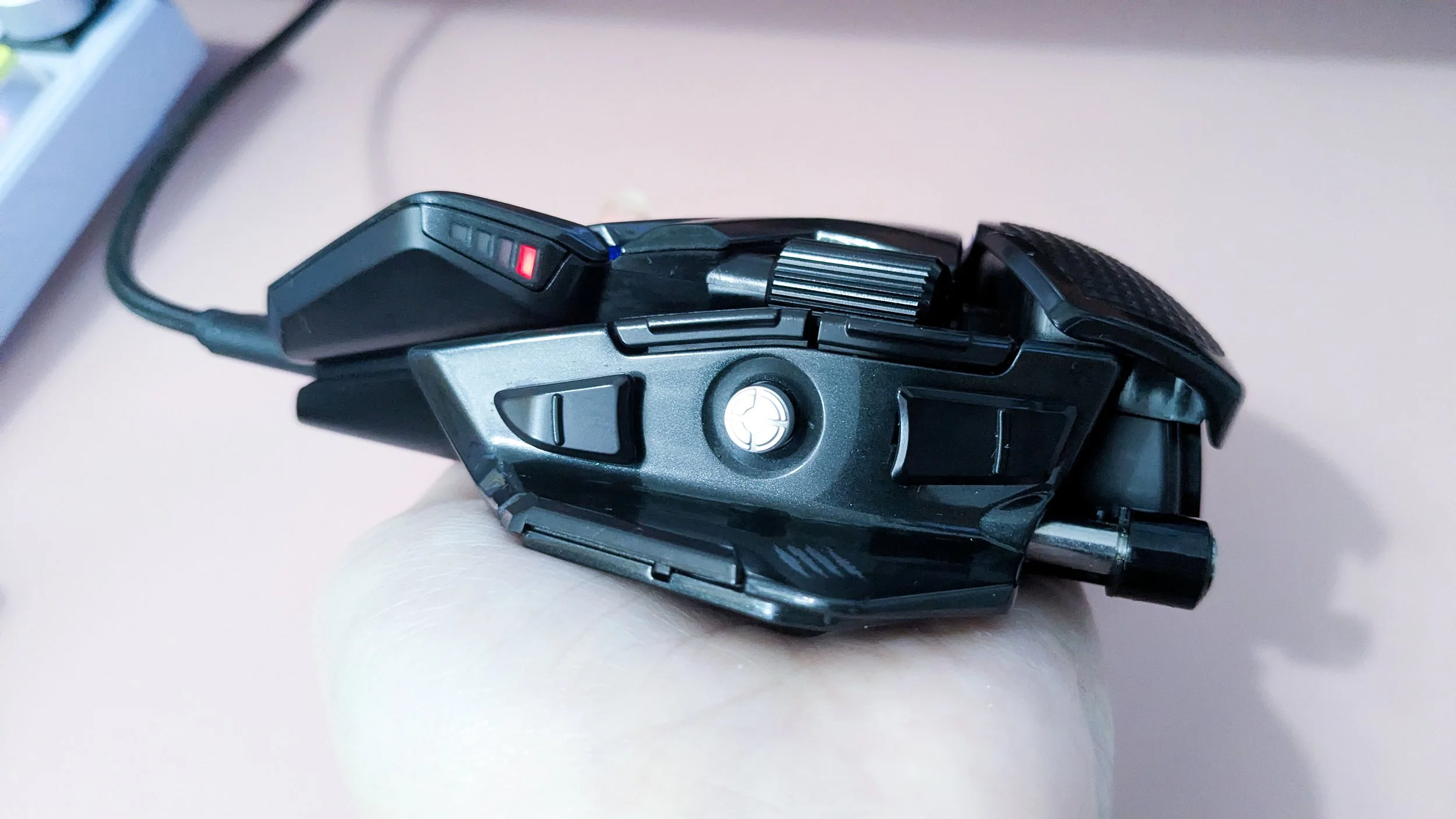
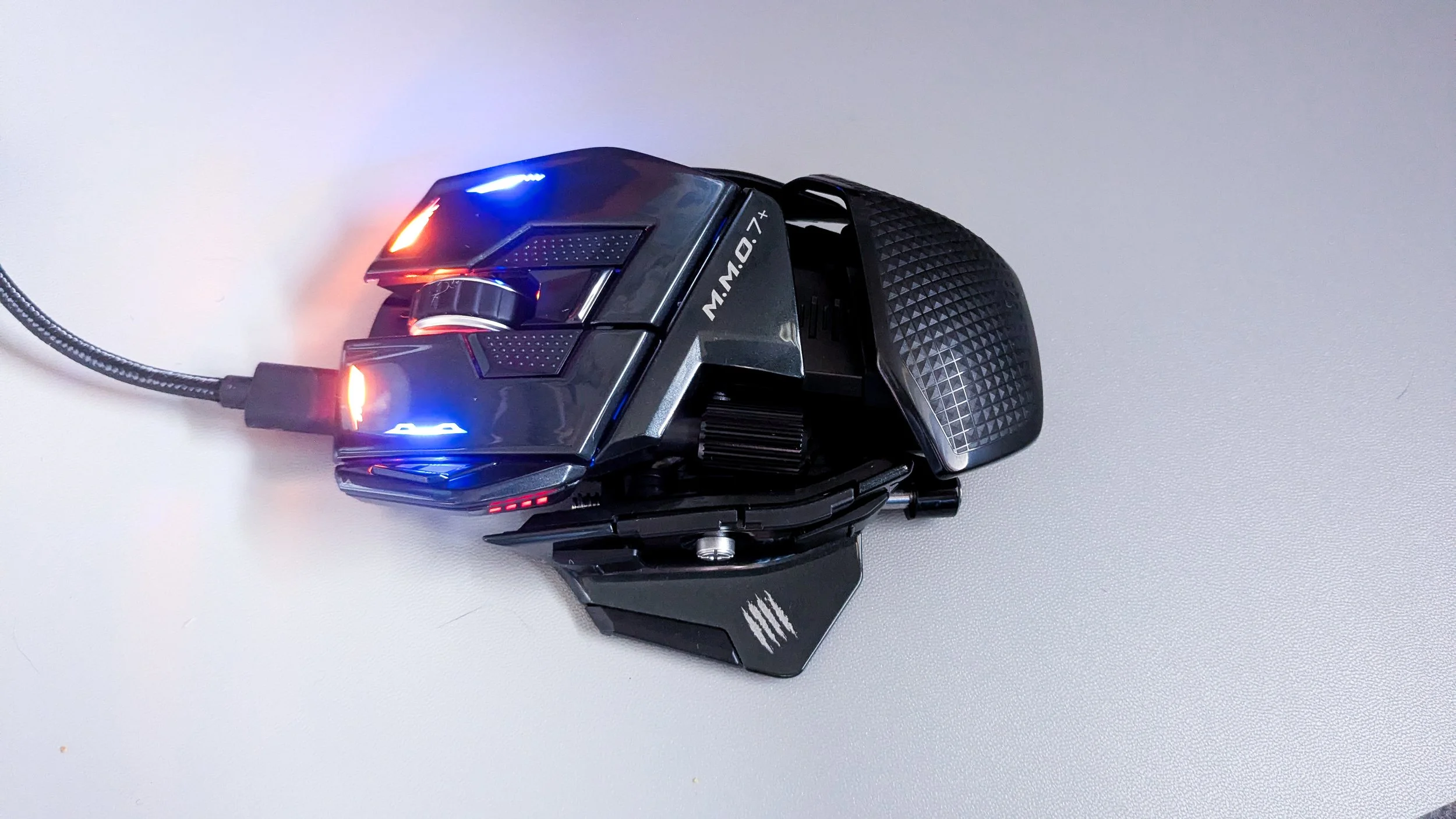
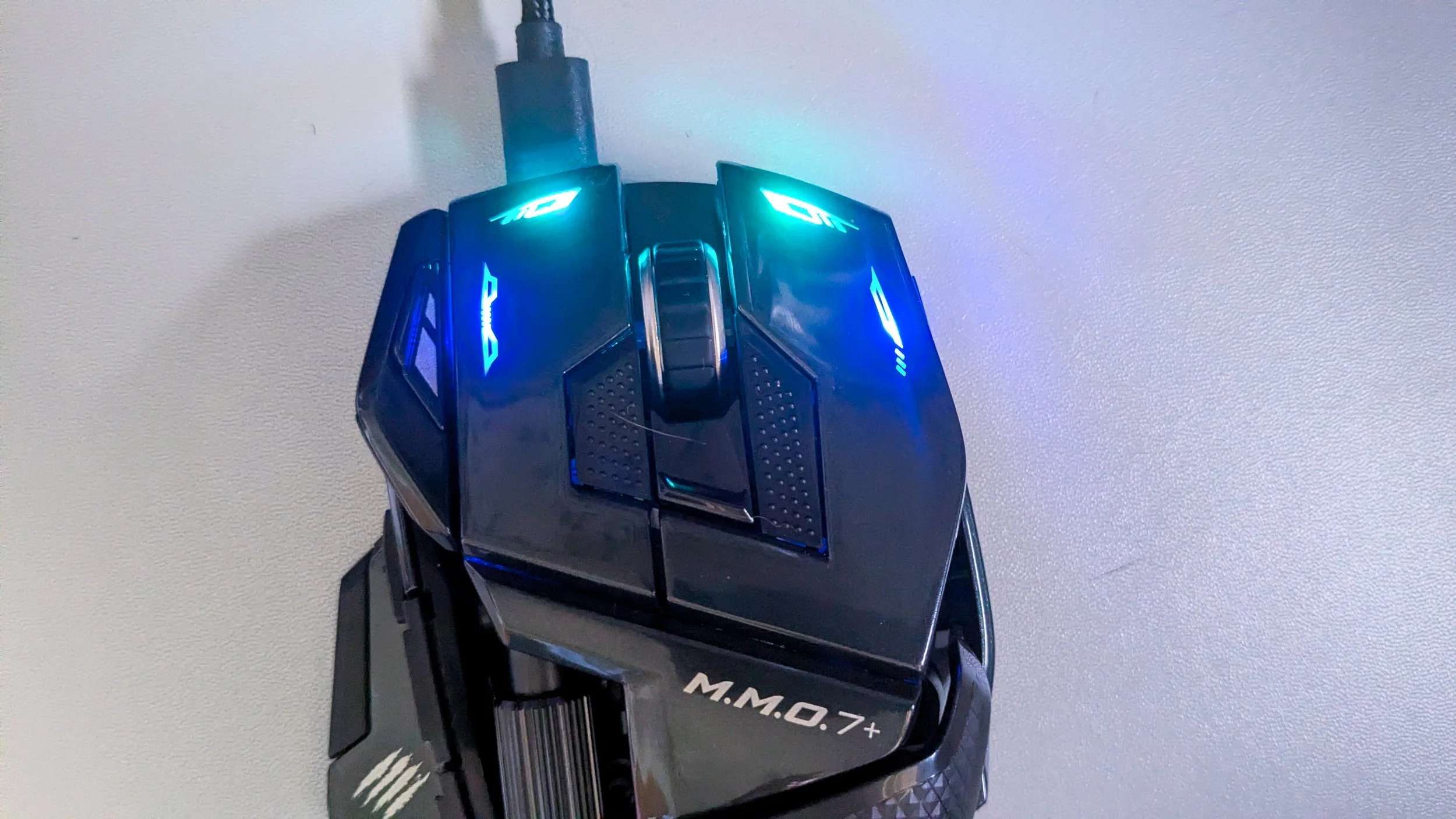
Despite this, I do think this mouse is less comfortable than others I have used. Again, I don’t experience any hand fatigue or pain while using it, but I don’t like that the finish of the plastic is the shiny, slippery type. Beyond disliking slippery plastic, this material seems to lend itself to looking a bit dirty, like it attracts dust particles. The number of cracks and crevices this mouse has doesn’t help with that, either. It’s also a rather flat-feeling mouse, and I much prefer those that sort of curve into my palm. If Mad Catz tries to improve on the design of this mouse, I hope they could find a way to make it feel a little more comfortable without jeopardizing the layout of the buttons. At the very least, a slightly textured plastic instead of a slippery one would be nice. 5Though it isn’t the most comfortable mouse I’ve used, it also isn’t uncomfortable, and I value the button placement so much more that the way this mouse feels in the hand is hardly a dealbreaker for me.
Are the Buttons Actually Convenient?
Most people buy MMO mice because the games they are playing have a lot of hotkeys, so many that it’s often inconvenient to try and map them all to the keyboard. Using an MMO mouse will open up 12 or more buttons that are easily within reach of one’s thumb. The Mad Catz mouse, though, is not your typical MMO mouse, and I’d like to talk about my experience with the 21 programmable buttons and whether or not I feel like they’re actually convenient and useful. The short answer is: mostly.
It Takes Some Getting Used To
The long answer is that first of all, you kind of have to learn how to use this mouse. It is intuitive, but your hand will have to make certain motions that you’re not used to making when using a mouse. Second of all, though I find most buttons to be convenient, there are a couple that feel a little awkward or difficult to press. I initially chose not to map anything to these buttons because of that, but later, one of the games I’m playing pretty much forced me to, and I ended up realizing that it just took a bit more time and practice to get used to them as compared to the other buttons on the mouse. Overall, I think most of the buttons on this mouse are really easy to press.
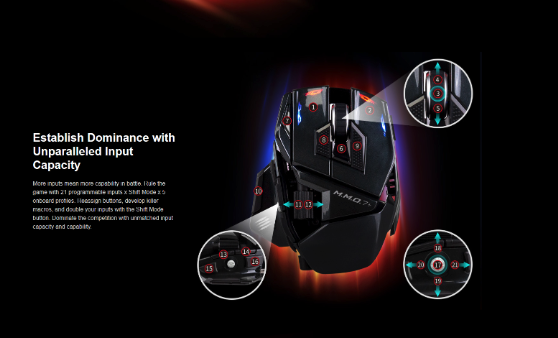
The button I would say is the most difficult for me to use is 9. Though it may seem like it’d be one of the easier ones to press, I either have to bend my middle finger back quite a bit or try to press it with the flat part of my finger, and both feel awkward. However, I do believe I could get used to it if I tried, as that has been the case for any other button I initially thought was awkward. I used to think button 14 was hard to press, but once I got some experience with it, I thought I was silly for avoiding it for as long as I did.
Learning Curve
It is intuitive, but your hand will have to make certain motions that you’re not used to making when using a mouse
Another button that you have to be careful about is the round silver one in the middle. This button can have up to 5 inputs: pushing it straight in, pushing left, pushing right, pushing up, or pushing down. I was initially concerned that it’d be really easy for the mouse to misconstrue what direction I was pushing, but it does a surprisingly good job of reading the input. That said, there is still a margin of error; I probably get the wrong input about 10% of the time. Technically, I’m the one being messy with how I push the button, but that’s to be expected when you’re in the heat of combat. It’s definitely a button I have to be more intentional with, and I’ve chosen not to put super important skills on it in case of a misfire: imagine your most powerful skill on a 2-minute cooldown gets pressed on accident, and then you don’t have it when you actually need it! I also find it a bit awkward to push this button upwards. Again, it’s not hard to do sitting here right now, but in the heat of an encounter, I will absolutely fumble. I mostly use this button for pushing it straight in, or pushing it downwards, as those are the easiest inputs to use.
How Does It Compare to a Standard MMO Mouse?
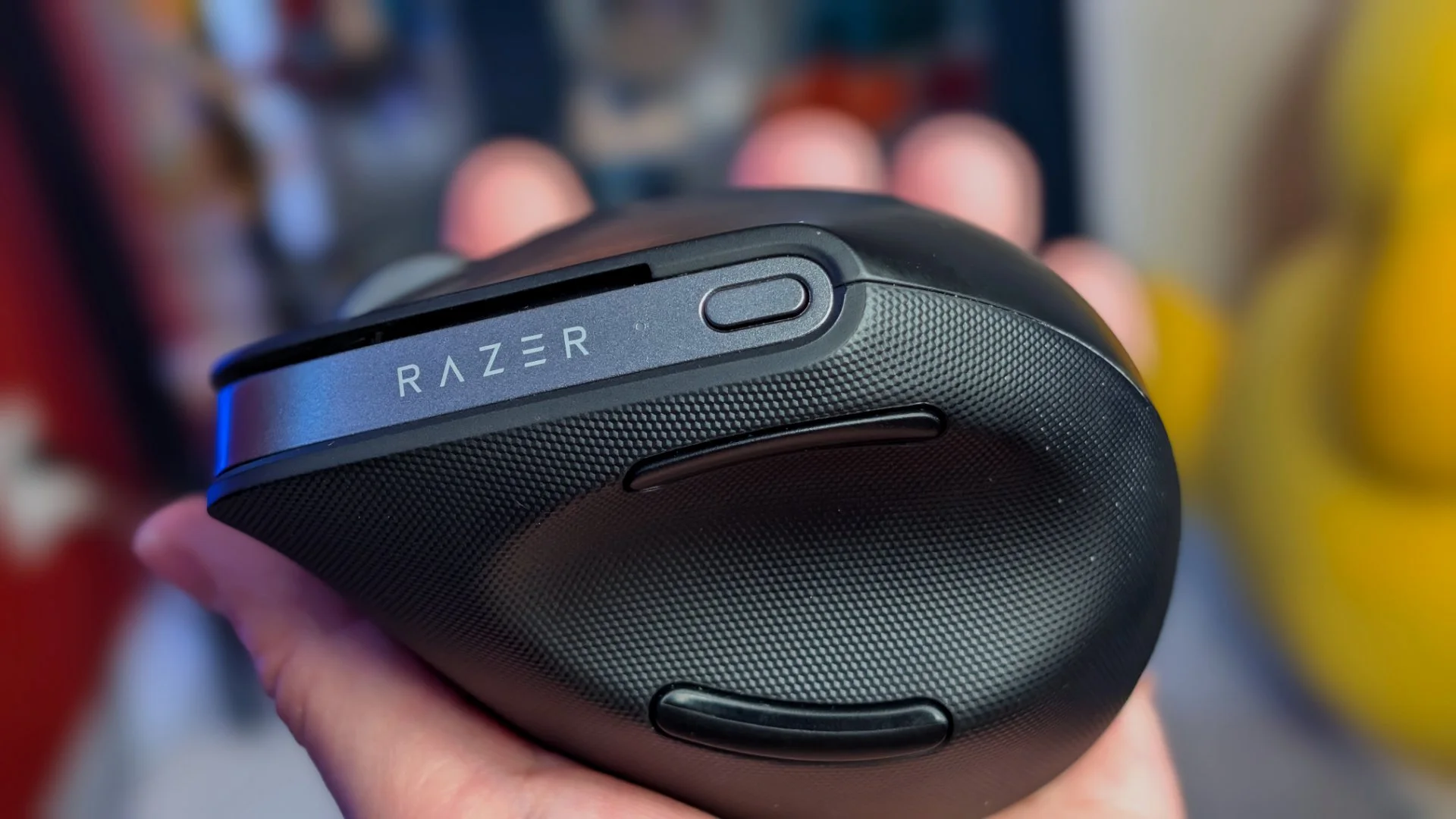
I’ve actually never owned or used a standard MMO mouse, and I really wanted to compare this Mad Catz mouse to one because of how different it is. So, The Sypnotix also sent me a Razer Naga V2 Hyperspeed, and there is absolutely no competition. The Mad Catz mouse blows it out of the water, in my opinion.
Though there is a learning curve and you’ll have to figure out which parts of your hand and thumb to use to press each button on the Mad Catz mouse, it is intuitive, and I find the majority of buttons far, far easier and less awkward to press than those on the Razer Naga with its traditional side panel of 12 buttons. An issue I have with the Razer mouse is that it’s really hard to tell the 12 buttons apart; they all feel very similar, none of them are textured, and Razer didn’t include any textured stickers to apply. Other traditional MMO mice may have buttons that are easier to tell apart because they have added texture or something else, but even then I would expect the Mad Catz mouse to be the winner here. Since the buttons are all over the mouse as opposed to all in a row, you’re never going to wonder if you’re pressing the right button; you can easily tell by feel and by the position of the button on the mouse. For me, the back half of the buttons on the Razer are so hard to reach that they might as well not even be there; they’re basically unusable. The motion I have to make with my hand and thumb is 100 times more awkward than any of the “awkward” buttons on the Mad Catz mouse; in fact, I feel silly for ever even thinking they were difficult to press, because they certainly have nothing on the Razer mouse! Truly, I think I’ll never be able to use any other MMO mouse besides a Mad Catz now. They’ve genuinely come up with something innovative that isn’t just a gimmick; they’ve really improved upon the functionality of the MMO mouse without sacrificing the amount of inputs.
A Shift Mode That Makes Sense
Before we move on, I wanted to mention one more feature I really appreciated. Many mice have a “shift” function that allows you to, without switching profiles, map secondary functions onto every single button. This mouse has one as well, and there’s a physical button on the right-hand side of the mouse that you can press. It may be because I have small hands, but this one was hard for me to hold down to use the secondary inputs. Good thing I don’t have to! In the software, I could toggle the button to swap to the secondary inputs with a single press, and then press it again to turn the shift mode off. I love that I could choose between holding the button down or a single press, as it turned a function that would’ve been useless for me into something very useful. On top of that, the lights on the mouse flash green when the shift mode is enabled, making it easy to tell which set of inputs I have enabled. Again, what a thoughtful design!
What About the Software?
As with any programmable mouse, you’re going to need software to program the buttons, make macros, mess with lighting, etc, but not all software is created equal. In fact, outside of big names like Corsair and Razer, the software that accompanies peripherals is often pretty crappy. Unfortunately, the Mad Catz software is also pretty bad. Setting up your keybinds is luckily easy and intuitive, but it’s really the “profile” section of the software that I have a huge problem with.
When I initially got the software set up, I could name the profiles, but the names wouldn’t stick. Every time I closed and reopened the software, they’d be reset. I have since updated the software, and it actually got worse. I can no longer rename any of the onboard profiles, and I can no longer switch between profiles in the profile tab. Instead, I have to do it via the hotkey editor. When I make new profiles, I cannot seem to access them in the hotkey editor in order to customize them. Not only that, but when I updated the software, it reset all of my custom onboard profiles to default, so I had to remake them. I’m glad that the software seems to work for actually saving hotkeys to the mouse buttons, but overall it is terrible software, and I absolutely hate it. It may be the biggest flaw this mouse has. You can export and import profiles, which I hadn’t had the foresight to do. I’ll be exporting my profiles after I remake them in the hopes that, should they ever get erased by an update, I’ll be able to simply import them and use them without having to manually set them up again.
Don’t Bother With The Lights
You’ll also find a section to customize the lighting within the software, but the lighting customization is terrible. First off, you can only customize the 2 lights at the very top of the mouse; the ones at the side of the left and right click remain blue and are not customizable. The mouse has a color picker, but it is so inaccurate it’s not even funny. I picked orange in the color picker, but what I saw on the mouse itself was green. Many of the colors just show up as off-white. The only setting that makes sense to use would be the spectrum cycling or colorful breathing, as the preset will actually give you a range of rainbow colors, which is better than anything you could pick on your own. It’s so strange, because in the spectrum cycling you can see hot pink, but I can’t seem to get that same shade of pink on my own. Same with orange – it exists, if only briefly, in the spectrum cycle, but I cannot actually seem to make the lights orange using the color picker. In the end, I prefer to use the default lights, which are breathing red. Even though I’m not a fan of red, when I press the shift key to access secondary functions, the lights flash green. The colors are so different, which makes it much easier to tell if I’m shifted or not. If I use the color picker or set the colors to cycle, the shift function flashes a medium blue instead. Though the flashing itself may be enough of a tell, I simply prefer the green as it is brighter and more obvious. I don’t see a way to pick what color the lights flash in shift mode, so I’m stuck with the default if I want to keep them green.


Final Thoughts
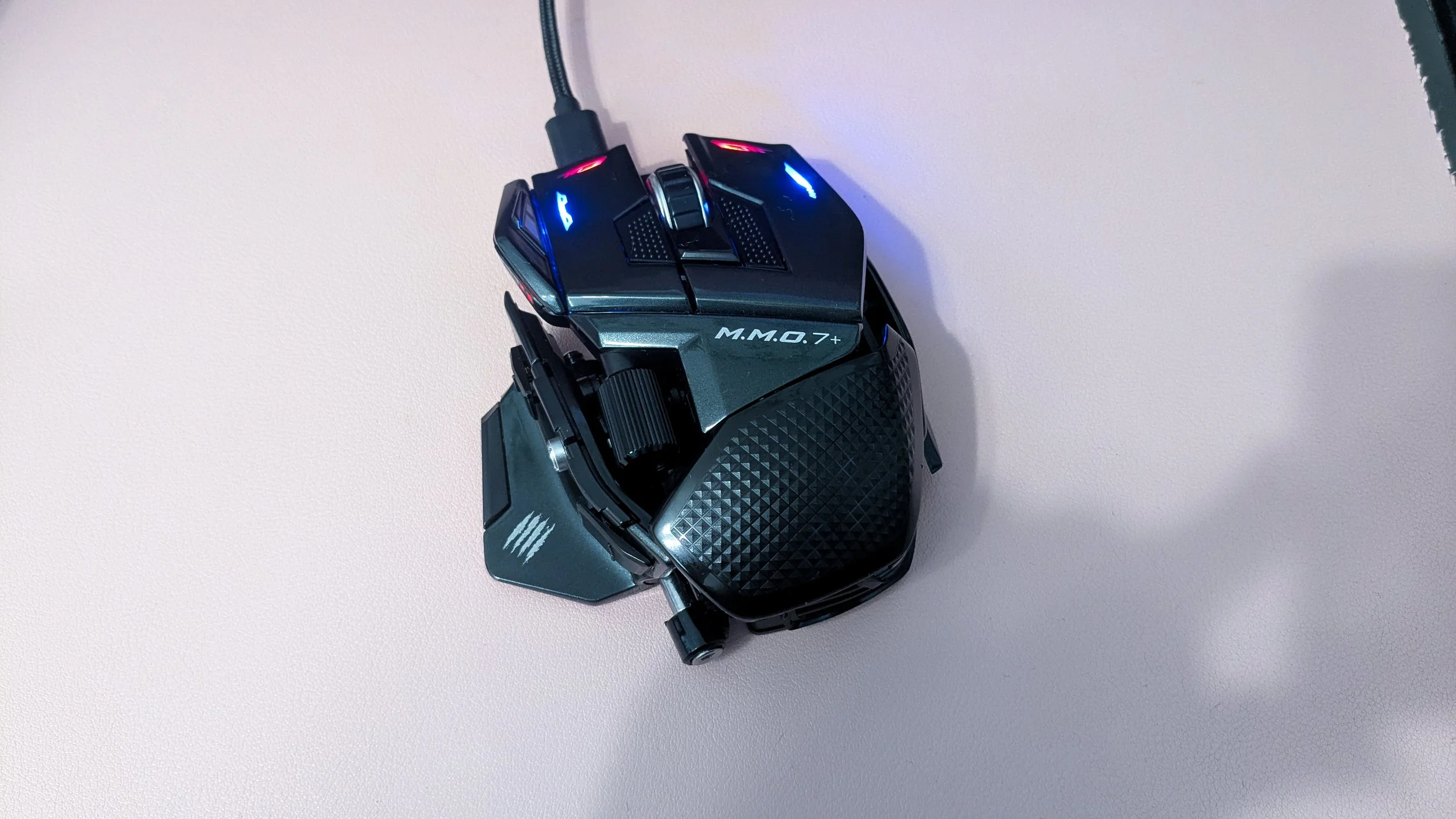
The Mad Catz M.M.O. 7+ is certainly a unique mouse that steers away from the traditional design of having a panel of 12 buttons on the side. It has 21 total inputs, though if you’re anything like me, you may find a few of them too awkward to actually use. Then again, there is a bit of practice involved with using this mouse, so even awkward keys may become second nature if you put in the effort to get used to them. Overall, the design is intuitive, and the button placement is well thought out. The physical customization of this mouse is truly impressive, as different parts can be moved around to better fit one’s hand. The software definitely needs some updating, but it still does its job well enough so that you can program the mouse buttons to suit your needs. It’s an expensive mouse, but I actually do think it is worth the price; the adjustability is impressive, and the button placement is far more convenient than that of any other mouse I’ve tried.
We are a participant in the Amazon Services LLC Associates Program, an affiliate advertising program designed to provide a means for us to earn fees and support our channel by linking to Amazon.com and affiliated sites.
This premium gaming mouse might be too good for my casual gamer needs.